
TLauncher Mods let Minecraft players add new content and features to their game setup. Mods can change gameplay, add new items, improve graphics, or introduce new systems. TLauncher can work with compatible Minecraft mod loaders and mods. The key is to match the mod, loader, and Minecraft version before starting the game.
What Are TLauncher Mods?
TLauncher Mods are Minecraft modifications used with a compatible game setup. A mod can change how Minecraft looks or plays. Some mods add new blocks, items, mobs, or tools. Others improve performance or change game menus. Each mod has its own requirements. Checking those requirements first helps prevent errors and crashes.
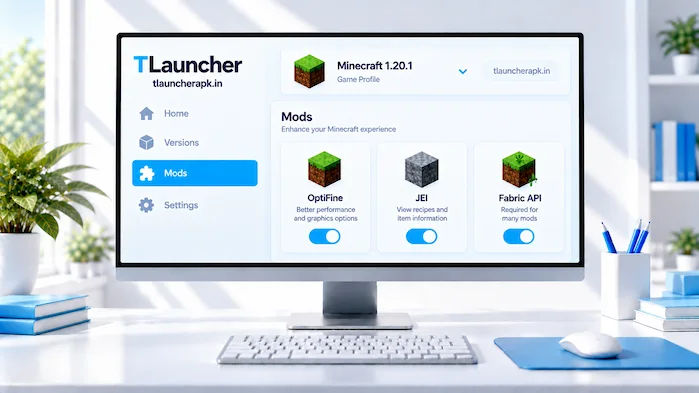
To understand the launcher and its main features, visit our TLauncher guide.
How Minecraft Mods Work
Minecraft mods add or change parts of the game. Most mods need a mod loader such as Forge or Fabric. The loader helps Minecraft read and run the mod files. A mod must also support the Minecraft version you want to use. If the versions do not match, the mod may not load or the game may fail to start.
TLauncher and Minecraft Mods
TLauncher can provide access to Minecraft setups that support mods. The launcher lets players select a Minecraft version and manage their game setup. Mod support depends on the selected version and loader. Before adding a mod, check whether it supports the same Minecraft version and loader.
How to Install TLauncher Mods
Installing TLauncher Mods starts with choosing a compatible mod and checking its requirements. You then need the correct Minecraft version and mod loader. After that, place the mod file in the correct mods folder and launch the matching game setup. Always follow the installation instructions provided with the mod.
If you have not installed the launcher yet, follow our TLauncher Download guide first.
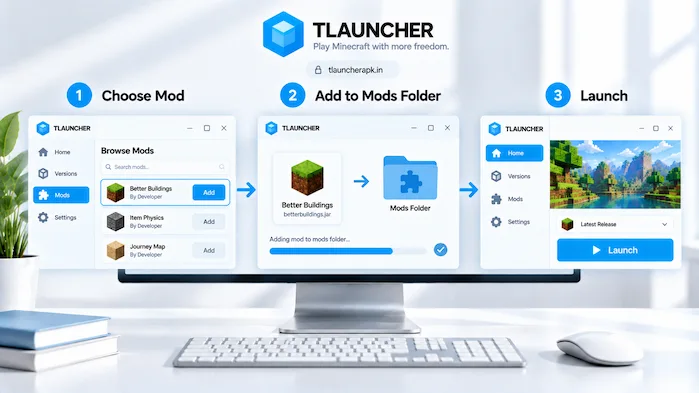
Choose a Compatible Mod
Choose a mod that supports your Minecraft version and mod loader. Check the mod page for required versions and dependencies. Some mods also need other files to work. Using a compatible setup reduces the chance of crashes and loading errors.
Check the Minecraft Version
Check the Minecraft version before installing a mod. For example, a mod made for one Minecraft release may not work with another release. The mod loader must also match the mod. Select the required Minecraft version in TLauncher before you add the mod.
Install the Mod
Download the correct mod file and place it in the Minecraft mods folder used by your selected setup. Do not rename the file unless the mod instructions require it. Keep only compatible mods in the folder. Then start the matching Minecraft profile through TLauncher.
Launch the Game
Start Minecraft after adding the mod. Check the main menu or game content to confirm that the mod loaded. If the game shows an error, close it and check the Minecraft version, loader, mod file, and required dependencies.
TLauncher Mod Compatibility
TLauncher mod compatibility depends on several parts of the Minecraft setup. The mod, Minecraft version, and mod loader must work together. Some mods also require additional libraries or dependencies. Checking these details before installation can prevent many common problems.
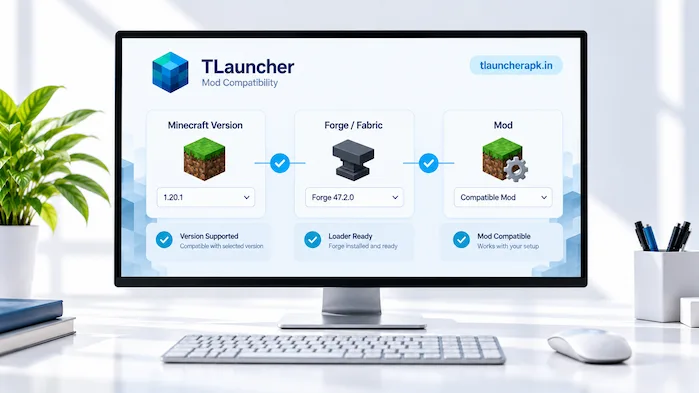
Minecraft Version Compatibility
A mod must support the Minecraft version you are using. Check the supported versions before adding it to your setup. Avoid mixing files made for different Minecraft versions unless the mod creator states that they are compatible.
Forge Mods
Forge mods need the Forge mod loader. If a mod requires Forge, select a matching Forge setup in TLauncher. The Minecraft version must also match the version supported by the mod.
Fabric Mods
Fabric mods need the Fabric loader and may require Fabric API. Check the requirements before installing the mod. Fabric mods must support the Minecraft version you are running.
Mod Dependencies
Some mods need additional files called dependencies. These files provide features that the main mod needs to run. Read the mod requirements and install every required dependency that matches your Minecraft version and loader.
TLauncher Mods and Modpacks
TLauncher Mods can also be used as part of a modpack. A modpack combines multiple mods into one Minecraft setup. Each modpack can have its own Minecraft version, loader, and required files. Using the correct setup helps keep the included mods compatible.
Using Modpacks
Check the modpack requirements before starting it. Look for the required Minecraft version, loader, memory settings, and dependencies. Install the modpack according to its instructions instead of mixing files from unrelated setups.
Managing Multiple Mod Setups
Separate game setups can help you manage different groups of mods. One setup can use a smaller collection, while another can contain a larger modpack. Keeping different setups separate also makes troubleshooting easier.
Checking Mod Conflicts
Two mods can sometimes change the same part of Minecraft and cause conflicts. Check the mod documentation if the game crashes after adding a new file. Removing the newest mod can also help identify the source of the problem.
TLauncher Mods Folder
The mods folder stores compatible Minecraft mod files for a game setup. The exact location can depend on your operating system and Minecraft installation. Use the folder connected to the Minecraft setup you are running. Do not place mods in unrelated game directories.
Where the Mods Folder Is
The mods folder is normally located inside the Minecraft game directory. Your operating system and launcher setup can affect the exact location. If you cannot find it, check the launcher or Minecraft installation settings for the active game directory.
Adding Mods to the Folder
Place compatible mod files inside the correct mods folder. Make sure the files match your Minecraft version and loader. After adding them, start the matching setup and check whether Minecraft loads the mods.
Removing a Mod
Close Minecraft before removing a mod. Delete the unwanted mod file from the mods folder and launch the game again. If the game still has problems, check whether another mod or dependency is causing the issue.
TLauncher Mods Not Working
TLauncher Mods may not work when the Minecraft version, mod loader, or mod file does not match. Missing dependencies can also cause errors. Start by checking the mod requirements. Then compare them with your current Minecraft setup.
Wrong Minecraft Version
A wrong Minecraft version is a common cause of mod errors. Check the version supported by the mod and select the same version in your setup. Do not assume that a mod will work across every Minecraft release.
Missing Mod Loader
Some mods need Forge, while others need Fabric. Check which loader the mod requires. Then use a matching loader setup before launching Minecraft.
Missing Dependencies
A mod may stop working when a required dependency is missing. Check the mod requirements and install the required dependency for the same Minecraft version and loader.
Conflicting Mods
A conflict can occur when two mods are not designed to work together. Remove recently added mods one at a time to find the source of the problem. Check the mod documentation for known compatibility issues.
Game Crashes
A game crash can result from an incorrect version, missing dependency, unsupported loader, or conflicting mod. Check the crash message first. Then review your installed mods and remove files that do not match your setup.
TLauncher Mods Safety
TLauncher Mods should come from sources you trust. Check the file type, mod requirements, and source before installing anything. Avoid unknown files that request unrelated software or unusual permissions. Keep your security software active when downloading and opening files.
Download Mods From Trusted Sources
Use reputable mod platforms and creator pages when looking for Minecraft mods. Check the mod name, supported version, loader, and installation instructions before downloading a file.
Check Mod Compatibility
Review the mod requirements before opening the file. A compatible mod should clearly state the Minecraft versions and loaders it supports. This also helps you avoid installing files that do not fit your setup.
Avoid Modified Files
Avoid unknown modified versions of popular mods. A file with an unclear source may contain unwanted software. Use the original mod source when possible and compare the file information with the creator’s details.
Scan Downloaded Files
Keep your operating system security tools active and scan downloaded files when appropriate. If a security tool flags a file, do not ignore the warning without checking the source and file details.
TLauncher Mods FAQs
How Do TLauncher Mods Work?
TLauncher Mods work through a compatible Minecraft setup and mod loader. The mod, loader, and Minecraft version must support each other.
How Do I Install TLauncher Mods?
Choose a compatible mod, check its requirements, place the file in the correct mods folder, and launch the matching Minecraft setup.
Where Is the TLauncher Mods Folder?
The mods folder is inside the Minecraft game directory used by your setup. Its exact location can vary by operating system and installation.
Do TLauncher Mods Need Forge?
Some mods need Forge, while others use Fabric or another supported loader. Check the requirements for each mod before installing it.
Do TLauncher Mods Need Fabric?
Some mods need Fabric, but not every mod does. Check the mod requirements to find the correct loader.
Why Are TLauncher Mods Not Working?
Common causes include an incorrect Minecraft version, missing dependencies, an unsupported loader, or a conflict between mods.
Can TLauncher Use Modpacks?
Yes, compatible Minecraft modpacks can be used with a suitable launcher setup. The Minecraft version, loader, and included mods must match the modpack requirements.
Conclusion
TLauncher Mods can expand Minecraft with new features, content, and gameplay changes. Successful mod installation depends on matching the Minecraft version, mod loader, dependencies, and mod files. Check compatibility before installation and keep your mod setup organized. When a mod causes problems, review the version and loader first.